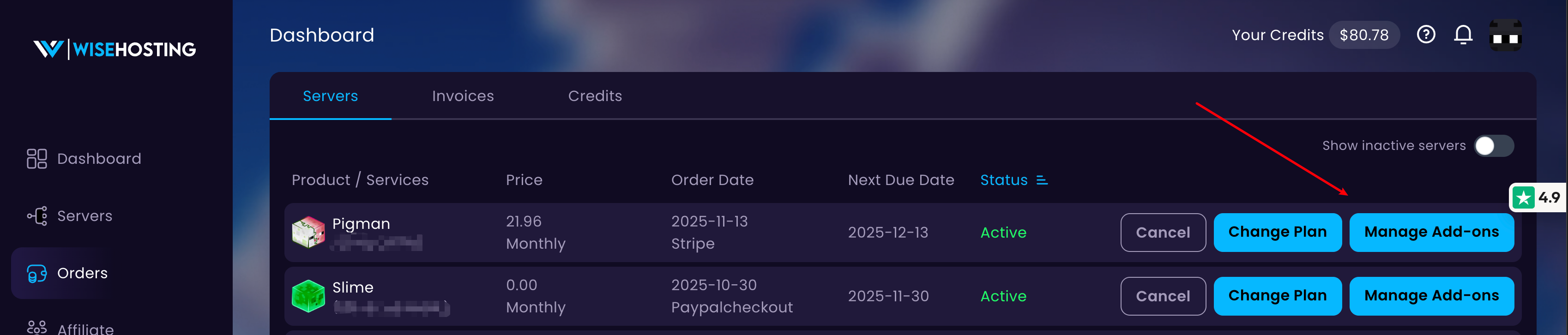
Navigate to the Orders page in the Billing Area and click on the Manage Add-ons -button for the service you'd like to upgrade.

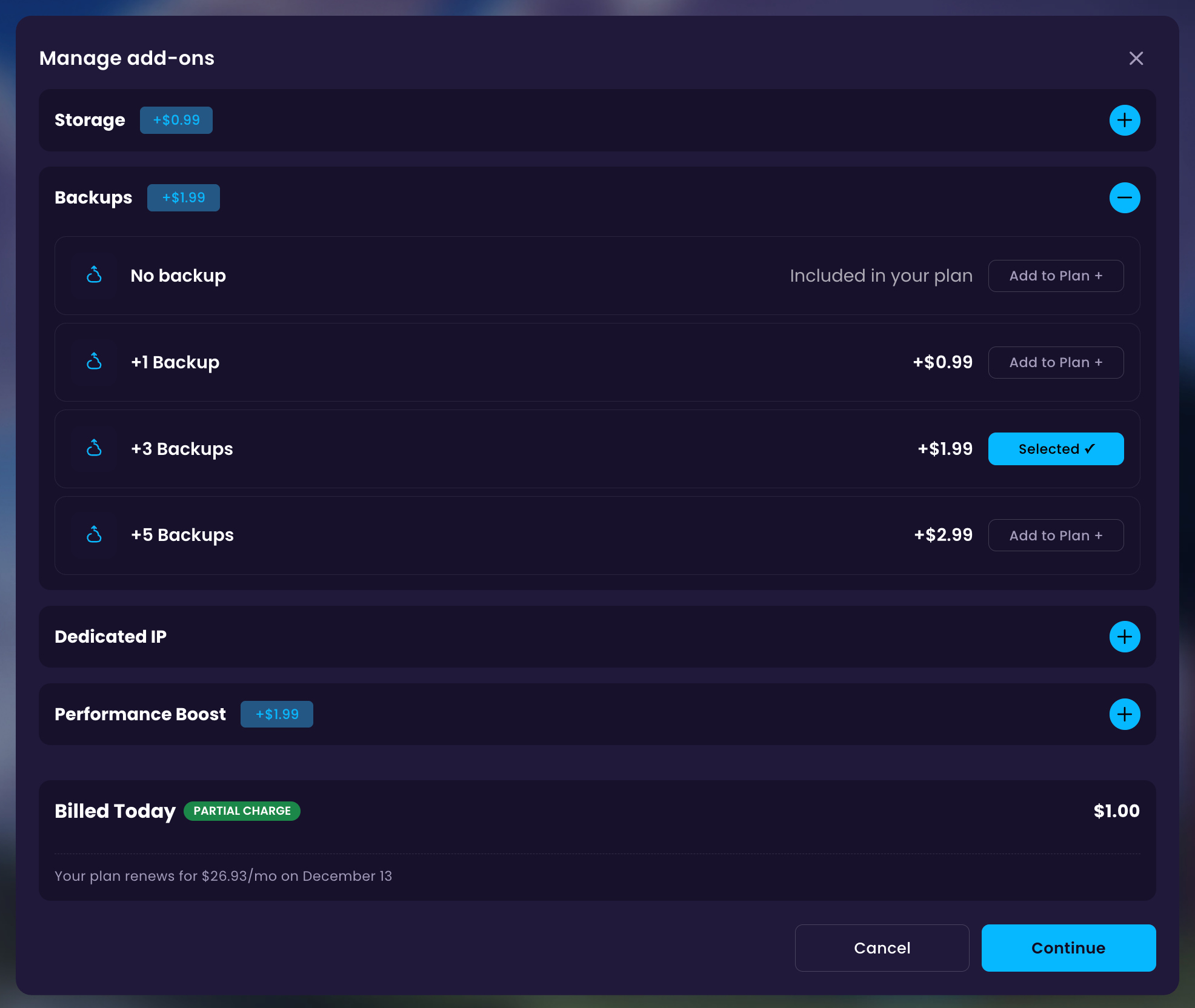
Now choose the new configuration for your server - storage, backups, or others. After selecting the new values, click on the Continue -button to finalize the upgrade.
Done! After the payment has succeeded, your server settings will automatically be updated. You might need to restart your server, and refresh the Game Panel site for the changes to take effect.
 Congratulations. You have successfully upgraded your service! If you have any issues or concerns, please contact us through the ticket system.

